<?xml version="1.0" encoding="utf-8"?><feed xmlns="http://www.w3.org/2005/Atom" ><generator uri="https://jekyllrb.com/" version="3.10.0">Jekyll</generator><link href="https://kyledunbar.dev/feed.xml" rel="self" type="application/atom+xml" /><link href="https://kyledunbar.dev/" rel="alternate" type="text/html" /><updated>2026-02-23T20:22:00+00:00</updated><id>https://kyledunbar.dev/feed.xml</id><title type="html">Kyle Dunbar’s Blog</title><subtitle>My personal writings on game development, computer science, techno-freedom and misc.</subtitle><author><name>Kyle Dunbar</name></author><entry><title type="html">Box Colliders Are Better Than Capsules</title><link href="https://kyledunbar.dev/2026/02/20/Box-Colliders-Are-Better-Than-Capsules.html" rel="alternate" type="text/html" title="Box Colliders Are Better Than Capsules" /><published>2026-02-20T21:52:50+00:00</published><updated>2026-02-20T21:52:50+00:00</updated><id>https://kyledunbar.dev/2026/02/20/Box-Colliders-Are-Better-Than-Capsules</id><content type="html" xml:base="https://kyledunbar.dev/2026/02/20/Box-Colliders-Are-Better-Than-Capsules.html"><![CDATA[<p>Capsule colliders offer smooth sliding against stairs and bumpy walls as the curved faces can roll along them - as opposed to a box collider which would snag on bumpy geometry. Capsules also give the ability for the character to roll up the corner of a ledge which adds a bit of tolerance to difficult platforming.</p>

<p>However they are not without their cons and through experience I posit that a box or cylinder collider, in 2D and 3D respectively, with additional systems is better for serious platforming.</p>

<h1 id="the-problem">The Problem</h1>
<p>Capsule colliders have curves on the feet and head. You can stand on the edge of a ledge and be lower than normal, upsetting any tight movement controls you might have calibrated. If your movement is physics based you will slip off the edge, and jumping into an edge will bounce you in an awkward direction.</p>

<figure class="half ">
  
    
      <a href="/assets/images/colliders1.png" title="Both colliders stand at the same height">
          <img src="/assets/images/colliders1.png" alt="A box collider and a capsule collider on a level platform, standing at the same height" />
      </a>


      <a href="/assets/images/colliders2.png" title="On the corners, capsules have an unwanted height.">
          <img src="/assets/images/colliders2.png" alt="A box collider and a capsule collider standing over the corners or a platform, at different heights." />
      </a>


    <figcaption>Unlike the box, the capsule’s height differs when standing on a corner.
</figcaption>
  
</figure>

<p>Additionally, with a cylinder the character will semi-smoothly glide up each stair, rather than abruptly stepping up which would give the feeling of climbing a staircase. Smoothly stepping may be desirable behaviour but should actually be achieved by modelling the collision for the stairs as a slope, as the capsule will still have some bounce.</p>

<h1 id="the-solution">The Solution</h1>
<p>A box or cylinder collider on the other hand has flat faces on the feet and head. This allows movement to be rigid and exact, but needs extra mechanics implemented to not feel frustrating. It removes the problem of variable heights when dealing with edges in exchange for requiring extra coded systems for <strong>step handling</strong>, <strong>ledge snapping</strong> (also called corner correction), and more complex <strong>grounded checks</strong> when dealing with slopes.</p>

<h4 id="step-handling">Step Handling</h4>
<p>Step handling systems behave by detecting a step in front of the player, and if it is shorter than a variable step height limit, moving the player onto the step - often with a small interpolation so its not <em>too</em> jolting, or game-breakingly quick to ascend a flight of stairs. This allows the level designer to choose whether a staircase should feel like a staircase or like a ramp depending on it’s collision model.</p>

<h4 id="ledge-snapping">Ledge Snapping</h4>
<p>Interlinked with step handling is ledge snapping. This allows a player to move or jump into a ledge’s corner and snap on top of it, giving a variably small tolerance to landing on a ledge. It is similar to step handling but occurs in the air and zeroes the player’s Y velocity.</p>

<p>This also introduces a micro optimisation technique into the game which may be desirable; by jumping precisely at a ledge you can snap to it and reset your Y velocity, reducing airtime which could lead to a small time save. This only really concerns speedrunning but could be desirable in a precision platformer or any platforming game that wants to make speedrunning more interesting.</p>

<h4 id="sloped-grounded-checks">Sloped Grounded Checks</h4>
<p>When standing on a slope with a flat footed collider, the centre of the collider will not be touching the ground. If you were to cast a ray to the ground for a grounded check, it may be too far away and appear as though you should be falling. It may be tempting to address this with collision based grounded checks, but this doesn’t work because as you traverse a slope, with the collider’s sharp corners you will flicker between touching and not touching the slope, making it so that your jump could not trigger or the wrong animation plays.</p>

<p>Instead, have three raycasts. One for the left side, the centre and the right side. If any of them are close enough to the ground, grounded is true. You can have a more robust set of rays if needed, but these 3 should be sufficient in most cases. You may also want to include a max slope angle using the normal of the raycast collision that returns false on a grounded check if the slope is too steep. This turns slopes that are too steep into walls instead of ground. If you still experience flickering because of context-dependent variables, like scale and angles, you can add extra gravity when grounded to push the player into the ground.</p>

<p class="notice--info">I recommend a cylinder collider for 3D so that the character can have the aforementioned benefits of flat feet and head, while being able to smoothly roll over bumpy walls. It also avoids an issue that a box collider has of non-uniform distance to walls at different angles.</p>

<h1 id="conclusion">Conclusion</h1>
<p>The additional systems may seem painful to implement when a capsule collider can cover the scenarios pretty well but the advantage overall of using flat faced colliders in this way is a much tighter control of movement technology and less random-feeling behaviour. For games where tight movement isn’t an important element you can use a capsule collider just fine. But if you are serious about movement, use a box.</p>

<hr />

<p>This post is a follow-up of the previous post you can check out here: <a href="https://www.kyledunbar.dev/2026/02/18/Techniques-to-Improve-2D-Platforming.html">Techniques to Improve 2D platforming</a></p>

<p>Thanks for reading! I will be posting once a week for the near future so come back soon or subscribe via RSS in the footer.</p>]]></content><author><name>Kyle Dunbar</name></author><summary type="html"><![CDATA[Capsule colliders offer smooth sliding against stairs and bumpy walls as the curved faces can roll along them - as opposed to a box collider which would snag on bumpy geometry. Capsules also give the ability for the character to roll up the corner of a ledge which adds a bit of tolerance to difficult platforming.]]></summary></entry><entry><title type="html">Techniques to Improve 2D Platforming</title><link href="https://kyledunbar.dev/2026/02/18/Techniques-to-Improve-2D-Platforming.html" rel="alternate" type="text/html" title="Techniques to Improve 2D Platforming" /><published>2026-02-18T02:00:50+00:00</published><updated>2026-02-18T02:00:50+00:00</updated><id>https://kyledunbar.dev/2026/02/18/Techniques-to-Improve-2D-Platforming</id><content type="html" xml:base="https://kyledunbar.dev/2026/02/18/Techniques-to-Improve-2D-Platforming.html"><![CDATA[<p>You can greatly improve the game feel of 2D platforming with some simple key mechanics. If the majority of your gameplay is platforming, it better feel good.</p>

<p>In this post I will share the techniques I include in my game to subtly improve the game feel of platforming. These techniques are what I consider the minimum for a platforming game where platforming is perhaps secondary to adventure or puzzling. In the end, I will briefly introduce some extra techniques you can use for more platforming-centric games.</p>

<p>The following implementations are extensions of the <a href="https://github.com/godotengine/godot/blob/master/modules/gdscript/editor/script_templates/CharacterBody2D/basic_movement.gd">Godot CharacterController2D Basic Movement Template</a>.</p>
<h1 id="jump-input-buffering">Jump Input Buffering</h1>
<p>Jump input buffering allows the player to press their jump action slightly before landing and the jump will still execute. This avoids the frustration of a jump the player thought should work not executing or having to perfectly press jump right when you are grounded in scenarios where you want to jump again as soon as you land, which is extremely common for efficiently traversing platforming scenes.</p>

<p>It works by changing the jump input from the ‘jump’ action to a new ‘jump buffering’ action. The jump buffering action sets a jump boolean to true, and back to false after it times out. During the time it is true, if the player touches the floor the jump action is executed.</p>

<p>Here is my Godot implementation:</p>
<div class="language-gdscript highlighter-rouge"><div class="highlight"><pre class="highlight"><code><span class="err">@</span><span class="k">onready</span> <span class="k">var</span> <span class="n">jump_buffer_timer</span><span class="p">:</span> <span class="n">Timer</span> <span class="o">=</span> <span class="o">%</span><span class="n">JumpBufferTimer</span>
<span class="k">var</span> <span class="n">is_jump_buffered</span><span class="p">:</span> <span class="kt">bool</span> <span class="o">=</span> <span class="bp">false</span>

<span class="k">func</span> <span class="nf">_physics_process</span><span class="p">(</span><span class="n">delta</span><span class="p">:</span> <span class="kt">float</span><span class="p">)</span> <span class="o">-&gt;</span> <span class="n">void</span><span class="p">:</span>
	<span class="c1"># Add the gravity.</span>
	<span class="k">if</span> <span class="ow">not</span> <span class="n">is_on_floor</span><span class="p">():</span>
		<span class="n">velocity</span> <span class="o">+=</span> <span class="n">get_gravity</span><span class="p">()</span> <span class="o">*</span> <span class="n">delta</span>

	<span class="c1"># Buffer jump.</span>
	<span class="k">if</span> <span class="n">Input</span><span class="o">.</span><span class="n">is_action_just_pressed</span><span class="p">(</span><span class="s2">"jump"</span><span class="p">):</span>
		<span class="n">is_jump_buffered</span> <span class="o">=</span> <span class="bp">true</span>
		<span class="n">jump_buffer_timer</span><span class="o">.</span><span class="n">start</span><span class="p">()</span>

	<span class="c1"># Handle jump.</span>
	<span class="k">if</span> <span class="n">is_jump_buffered</span> <span class="o">&amp;&amp;</span>  <span class="n">is_on_floor</span><span class="p">():</span>
		<span class="n">is_jump_buffered</span> <span class="o">=</span> <span class="bp">false</span>
		<span class="n">velocity</span><span class="o">.</span><span class="n">y</span> <span class="o">=</span> <span class="n">JUMP_VELOCITY</span>

	<span class="n">move_and_slide</span><span class="p">()</span>

<span class="k">func</span> <span class="nf">_on_jump_buffer_timer_timeout</span><span class="p">()</span> <span class="o">-&gt;</span> <span class="n">void</span><span class="p">:</span>
	<span class="n">is_jump_buffered</span> <span class="o">=</span> <span class="bp">false</span>
</code></pre></div></div>
<h1 id="coyote-time">Coyote Time</h1>
<p>Coyote time, named after Wile E. Coyote, allows the player to still jump for a short time after running off of a ledge. This helps a player make a long jump because they will want to time it to the last possible moment to press jump, which often would result in them unceremoniously falling off of the edge. Coyote time instead extends a grace period during this fall where if the jump action is pressed within it, the jump still goes ahead.</p>

<p>By keeping a boolean value from the last frame of whether you were grounded, and comparing it to the current frame, you can determine if the player just left the ground. If you just left the ground, and you didn’t jump, it starts the coyote timer which sets a coyote boolean to true. Now in the jump action, you check if the player is on the floor <em>or</em> if coyote is true.</p>

<p>In Godot, I implemented it as such:</p>
<div class="language-gdscript highlighter-rouge"><div class="highlight"><pre class="highlight"><code><span class="err">@</span><span class="k">onready</span> <span class="k">var</span> <span class="n">coyote_timer</span><span class="p">:</span> <span class="n">Timer</span> <span class="o">=</span> <span class="o">%</span><span class="n">CoyoteTimer</span>
<span class="k">var</span> <span class="n">is_coyote</span><span class="p">:</span> <span class="kt">bool</span> <span class="o">=</span> <span class="bp">false</span>
<span class="k">var</span> <span class="n">was_grounded</span><span class="p">:</span> <span class="kt">bool</span> <span class="o">=</span> <span class="bp">false</span>

<span class="k">func</span> <span class="nf">_physics_process</span><span class="p">(</span><span class="n">delta</span><span class="p">:</span> <span class="kt">float</span><span class="p">)</span> <span class="o">-&gt;</span> <span class="n">void</span><span class="p">:</span>
	<span class="o">...</span>
	<span class="c1"># Handle jump.</span>
	<span class="k">if</span> <span class="n">is_jump_buffered</span> <span class="o">&amp;&amp;</span> <span class="p">(</span><span class="n">is_on_floor</span><span class="p">()</span> <span class="ow">or</span> <span class="n">is_coyote</span><span class="p">):</span>
		<span class="n">is_coyote</span> <span class="o">=</span> <span class="bp">false</span>
		<span class="n">is_jump_buffered</span> <span class="o">=</span> <span class="bp">false</span>
		<span class="n">velocity</span><span class="o">.</span><span class="n">y</span> <span class="o">=</span> <span class="n">JUMP_VELOCITY</span>

	<span class="n">move_and_slide</span><span class="p">()</span>

	<span class="c1"># Handle coyote timer</span>
	<span class="k">if</span> <span class="n">was_grounded</span> <span class="o">&amp;&amp;</span> <span class="o">!</span><span class="n">is_on_floor</span><span class="p">()</span> <span class="o">&amp;&amp;</span> <span class="o">!</span><span class="n">Input</span><span class="o">.</span><span class="n">is_action_just_pressed</span><span class="p">(</span><span class="s2">"jump"</span><span class="p">):</span>
		<span class="n">is_coyote</span> <span class="o">=</span> <span class="bp">true</span>
		<span class="n">coyote_timer</span><span class="o">.</span><span class="n">start</span><span class="p">()</span>

	<span class="k">if</span> <span class="n">is_on_floor</span><span class="p">():</span>
		<span class="n">is_coyote</span> <span class="o">=</span> <span class="bp">false</span>

	<span class="n">was_grounded</span> <span class="o">=</span> <span class="n">is_on_floor</span><span class="p">()</span>

</code></pre></div></div>

<p class="notice--info">Note: is_on_floor() is only updated after move_and_slide(), so we need to do the coyote check after move_and_slide() to have an up to date is_on_floor() and before updating was_grounded to know if the character left the floor in the previous frame.</p>
<h1 id="variable-jump-height">Variable Jump Height</h1>
<p>Variable jump height allows for the player to control jump height based on how long they hold the jump button. A short tap results in a small hop, and a full hold results in a max height leap. This is desirable because it gives players control and expression over how they move throughout a scene and let’s them optimise away air time.</p>

<p>Most implementations you will see of this reduce gravity while jump is held. This adds height to the standard jump. I prefer to treat it as a reductive process, and add gravity when jump is released. This allows the developer to implement this without having to reconfigure their standard jump height.</p>

<p>I implement it in Godot like this:</p>
<div class="language-gdscript highlighter-rouge"><div class="highlight"><pre class="highlight"><code><span class="k">func</span> <span class="nf">_physics_process</span><span class="p">(</span><span class="n">delta</span><span class="p">:</span> <span class="kt">float</span><span class="p">)</span> <span class="o">-&gt;</span> <span class="n">void</span><span class="p">:</span>
	<span class="o">...</span>
	<span class="c1"># Halve velocity when jump is released while ascending</span>
	<span class="k">if</span> <span class="n">Input</span><span class="o">.</span><span class="n">is_action_just_released</span><span class="p">(</span><span class="s2">"jump"</span><span class="p">)</span> <span class="o">&amp;&amp;</span> <span class="n">velocity</span><span class="o">.</span><span class="n">y</span> <span class="o">&lt;</span> <span class="mi">0</span><span class="p">:</span>
		<span class="n">velocity</span><span class="o">.</span><span class="n">y</span> <span class="o">=</span> <span class="n">velocity</span><span class="o">.</span><span class="n">y</span> <span class="o">/</span> <span class="mi">2</span>
	<span class="o">...</span>
</code></pre></div></div>

<p class="notice--info">Instead of adding gravity I simply halve the vertical velocity which creates a smooth apex in one operation.</p>
<h1 id="other-techniques">Other Techniques</h1>
<p>The techniques above can be incorporated into almost any platformer and feel right. The following techniques are a bit more specialised and may not be suitable for your game. I will introduce the concept and explain why it could be good, but I won’t provide details as to how they work.</p>

<p><strong>Apex hang time</strong> - By reducing gravity at the apex of a jump you can create a short hang time which creates a floaty feeling that feels heroic.</p>

<p><strong>Horizontal acceleration</strong> - Instead of instantly being at max speed when moving, horizontal velocity ramps up and down following acceleration and deceleration curves. It is recommended to decelerate faster than the acceleration. This gives the movement a feeling of weight while letting it still feel responsive.</p>

<p><strong>Reduced air control</strong> - By allowing the player to influence their horizontal velocity less in the air, you make the player be more deliberate about their jumps because they cannot make corrections as easily. This can be taken the other way and allow for more air control to achieve an opposing effect.</p>

<p><strong>Turn acceleration</strong> - Detect when the player changes direction and increase acceleration. This creates a snappier horizontal movement.</p>

<p><strong>Ledge snapping</strong> - Snap the character’s position to a ledge if they would barely miss. This softens the difficulty a bit and rewards intent rather than execution. This ties into player-centred design which favours the player’s intent over the game’s physics.</p>
<h1 id="juice">Juice</h1>
<p>Mechanics is only half the puzzle of game feel. To make a mechanic really feel good, you need ‘Juice’ - or visual and audio feedback.</p>

<p>The principles of animation such as squash and stretch and anticipation will make all of the movements feel more real and impressive by adding a perception of weight and intention to the character.</p>

<p>Visual effects such as dust particles when running, landing or turning quickly can help make motion feel real, readable, and identifiable.</p>

<p>Good sound design goes a long way into making a movement system feel good. A soft jump sound and strong landing sound can help to give a sense of impact and subtly reinforce timing to the player. A subtle footstep loop quietly makes the movements feel real and immersive.</p>

<p>A heavy landing could reverb and cause dust to fall in a cave scene or create a large water spray in a pond scene. How you juice the mechanics is largely dependent on what you are trying to achieve with your game design.</p>

<hr />

<p>Check out the <a href="https://www.kyledunbar.dev/2026/02/20/Box-Colliders-Are-Better-Than-Capsules.html">follow-up post</a> where I discuss collider shapes.</p>

<p>That’s all! Thank you for reading. Follow me on the platforms in the footer so I look cool online and subscribe via RSS if you want to catch the next one.</p>]]></content><author><name>Kyle Dunbar</name></author><summary type="html"><![CDATA[You can greatly improve the game feel of 2D platforming with some simple key mechanics. If the majority of your gameplay is platforming, it better feel good.]]></summary></entry><entry><title type="html">Implementing Dual Layer Auto Tiling With 5 Tiles</title><link href="https://kyledunbar.dev/2026/02/05/Implementing-auto-tiling-with-just-5-tiles.html" rel="alternate" type="text/html" title="Implementing Dual Layer Auto Tiling With 5 Tiles" /><published>2026-02-05T02:50:50+00:00</published><updated>2026-02-05T02:50:50+00:00</updated><id>https://kyledunbar.dev/2026/02/05/Implementing-auto-tiling-with-just-5-tiles</id><content type="html" xml:base="https://kyledunbar.dev/2026/02/05/Implementing-auto-tiling-with-just-5-tiles.html"><![CDATA[<figure class=""><a href="/assets/images/auto-tiling.gif" class="image-popup"><img src="/assets/images/auto-tiling.gif" alt="gif of auto-tiling" /></a></figure>

<p>Auto tiling is a powerful technique in 2D gamedev that allows you to build levels much easier by setting a tile as populated or not, and having the editor programmatically place the corresponding tile.</p>

<p>Typically this involves checking the 8 neighbours and choosing from <a href="https://manual.gamemaker.io/lts/en/The_Asset_Editors/Tile_Set_Editors/Auto_Tiles.htm">16 to ~47-56 Tiles</a>. In theory there are 256 permutations, but you can get away with creating much less. Of course you could create a world with just 1 tile, but we are after painted edges.</p>

<p>This post shows an implementation of a system I discovered from <a href="https://www.youtube.com/watch?v=aWcCNGen0cM">Nonsensical 2D</a>’s video that uses just 5 tiles. The concept is engine-agnostic but part 2 will be turning it into Godot specific tooling.</p>

<h1 id="how-it-works">How it works</h1>
<p>The core concept is to separate the tilemap into 2 tilemaps: one for physical tiles with colliders, and one for visuals. By separating the visuals from the physical, we can offset the visuals by -0.5 tiles and paint a tile by it’s corners, as shown below:</p>

<!-- Courtesy of embedresponsively.com -->

<div class="responsive-video-container">
    <iframe src="https://www.youtube-nocookie.com/embed/pYXBdLZoRCU" frameborder="0" webkitallowfullscreen="" mozallowfullscreen="" allowfullscreen=""></iframe>
  </div>

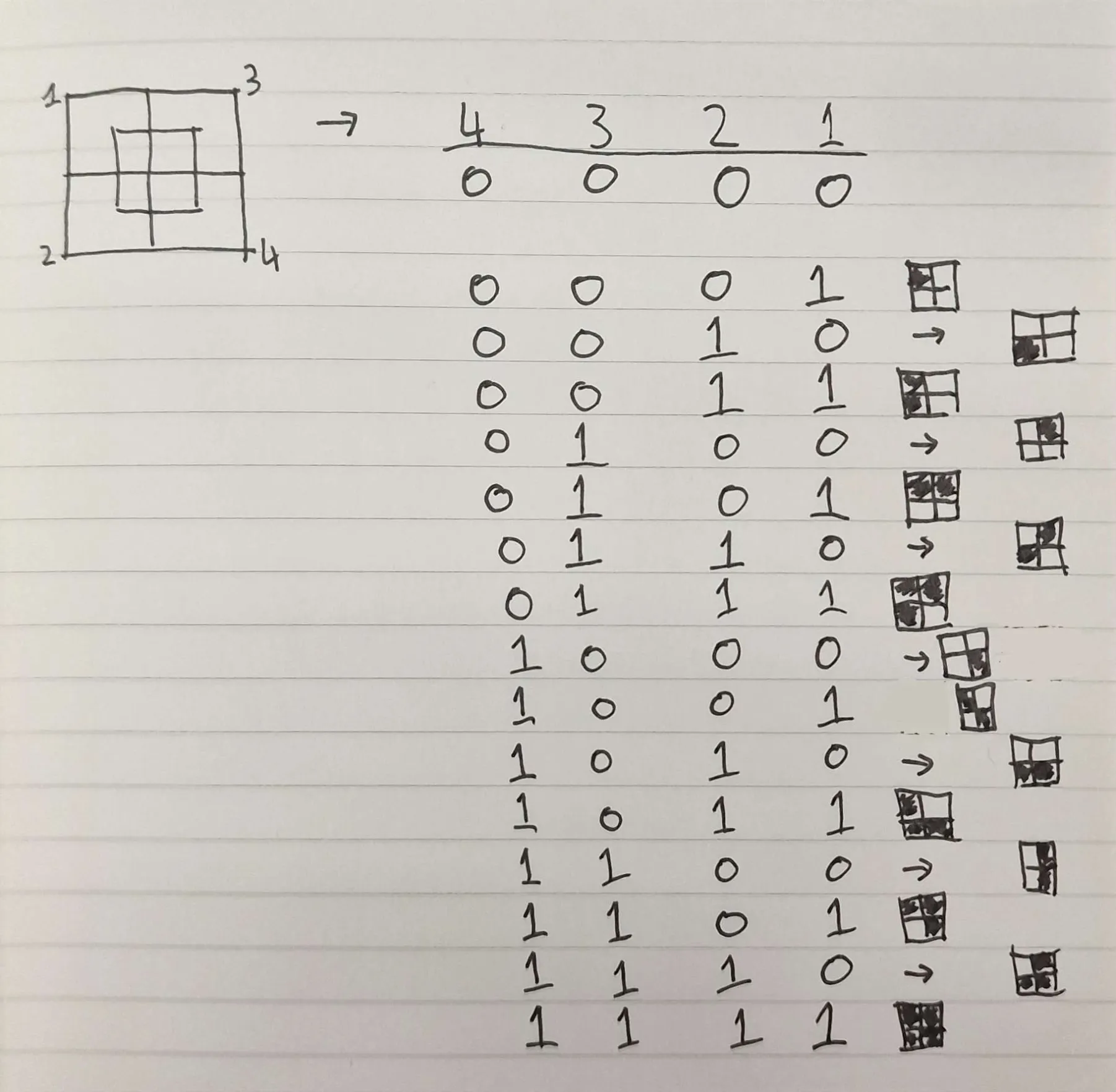
<p>This gives each tile 4 neighbouring tiles between the other tilemap or just 16 permutations. We can represent this as a 4-bit mask and map each permutation to a visual placement.</p>

<figure class=""><a href="/assets/images/bitmask_representation.webp" class="image-popup" title="Bitmask representation of 4 neighbours
"><img src="/assets/images/bitmask_representation.webp" alt="4 bit encoding of neighbour occupation states" /></a><figcaption>
      Bitmask representation of 4 neighbours

    </figcaption></figure>

<p>Then for each 4 visual neighbours of a physical tile, we check their physical neighbours to know which permutation to place.</p>

<!-- Courtesy of embedresponsively.com -->

<div class="responsive-video-container">
    <iframe src="https://www.youtube-nocookie.com/embed/lRuu18n8Vm0" frameborder="0" webkitallowfullscreen="" mozallowfullscreen="" allowfullscreen=""></iframe>
  </div>

<p class="notice--warning">Note: For corners you need to place the visual tile that opposes the occupation representation i.e. if there is a neighbour in the bottom-left, you will need to place the visual tile that occupies the top-right quadrant of the visual tile; for the physical tile it is the bottom-left,  but for the  visual tile it is the top-right*</p>

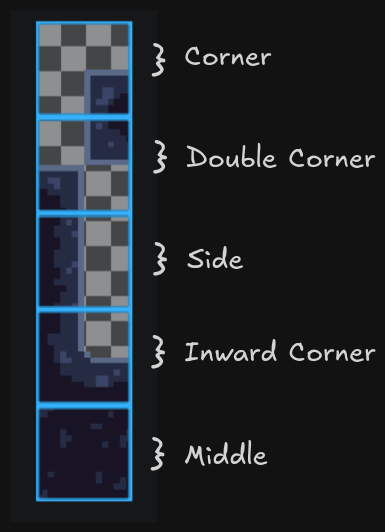
<p>Since we are painting visuals by their corners, we can reuse textures to compose other variants by rotating them in editor or in the placement script. This means we only need: a corner, a side, opposing corners, inwards corner, and a full / middle piece - 5 tiles.</p>

<figure class=""><a href="/assets/images/5_tiles_annotated.png" class="image-popup" title="The 5 tiles needed
"><img src="/assets/images/5_tiles_annotated.png" alt="5 necessary tile pieces" /></a><figcaption>
      The 5 tiles needed

    </figcaption></figure>

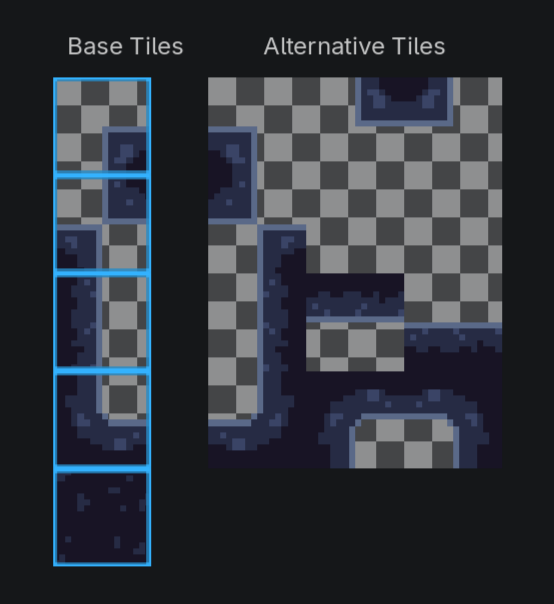
<p>From these 5 tiles, we can rotate or flip the tile programmatically, as needed, to create the 16 different tile pieces. I store the 16 pieces in an array which is accessed by index corresponding to the binary value of the bitmask - it is important to setup your array in this order. In Godot, we can create alternative tiles directly in the editor and they are given coordinates in the texture atlas so we can simply store the coordinates. For other implementations, you may want to store the tile atlas coordinate + rotation instructions.</p>

<div class="language-gdscript highlighter-rouge"><div class="highlight"><pre class="highlight"><code><span class="err">@</span><span class="k">onready</span> <span class="k">var</span> <span class="n">tileArray</span><span class="p">:</span> <span class="kt">Array</span><span class="p">[</span><span class="n">Vector2i</span><span class="p">]</span> <span class="o">=</span> <span class="p">[</span> <span class="c1"># Encodes 16 tile permutations as a u4 bitmask / index</span>
	<span class="n">Vector2i</span><span class="p">(</span><span class="mi">4</span><span class="p">,</span><span class="mi">0</span><span class="p">),</span> <span class="c1"># 0000</span>
	<span class="n">Vector2i</span><span class="p">(</span><span class="mi">0</span><span class="p">,</span><span class="mi">3</span><span class="p">),</span> <span class="c1"># 0001 TL</span>
	<span class="n">Vector2i</span><span class="p">(</span><span class="mi">0</span><span class="p">,</span><span class="mi">1</span><span class="p">),</span> <span class="c1"># 0010 BL</span>
	<span class="n">Vector2i</span><span class="p">(</span><span class="mi">2</span><span class="p">,</span><span class="mi">0</span><span class="p">),</span> <span class="c1"># 0011 BL TL</span>
	<span class="n">Vector2i</span><span class="p">(</span><span class="mi">0</span><span class="p">,</span><span class="mi">2</span><span class="p">),</span> <span class="c1"># 0100 TR</span>
	<span class="n">Vector2i</span><span class="p">(</span><span class="mi">2</span><span class="p">,</span><span class="mi">3</span><span class="p">),</span> <span class="c1"># 0101 TR TL</span>
	<span class="n">Vector2i</span><span class="p">(</span><span class="mi">1</span><span class="p">,</span><span class="mi">0</span><span class="p">),</span> <span class="c1"># 0110 TR BL</span>
	<span class="n">Vector2i</span><span class="p">(</span><span class="mi">3</span><span class="p">,</span><span class="mi">2</span><span class="p">),</span> <span class="c1"># 0111 TR BL TL</span>
	<span class="n">Vector2i</span><span class="p">(</span><span class="mi">0</span><span class="p">,</span><span class="mi">0</span><span class="p">),</span> <span class="c1"># 1000 BR</span>
	<span class="n">Vector2i</span><span class="p">(</span><span class="mi">1</span><span class="p">,</span><span class="mi">1</span><span class="p">),</span> <span class="c1"># 1001 BR TL</span>
	<span class="n">Vector2i</span><span class="p">(</span><span class="mi">2</span><span class="p">,</span><span class="mi">4</span><span class="p">),</span> <span class="c1"># 1010 BR BL</span>
	<span class="n">Vector2i</span><span class="p">(</span><span class="mi">3</span><span class="p">,</span><span class="mi">0</span><span class="p">),</span> <span class="c1"># 1011 BR BL TL</span>
	<span class="n">Vector2i</span><span class="p">(</span><span class="mi">2</span><span class="p">,</span><span class="mi">2</span><span class="p">),</span> <span class="c1"># 1100 BR TR</span>
	<span class="n">Vector2i</span><span class="p">(</span><span class="mi">3</span><span class="p">,</span><span class="mi">3</span><span class="p">),</span> <span class="c1"># 1101 BR TR TL</span>
	<span class="n">Vector2i</span><span class="p">(</span><span class="mi">3</span><span class="p">,</span><span class="mi">1</span><span class="p">),</span> <span class="c1"># 1110 BR TR BL</span>
	<span class="n">Vector2i</span><span class="p">(</span><span class="mi">4</span><span class="p">,</span><span class="mi">0</span><span class="p">),</span> <span class="c1"># 1111 BR TR BL TL</span>
<span class="p">]</span>
</code></pre></div></div>
<p class="notice--danger">Make sure to order your tiles in the binary order corresponding with the bitmask representations of neighbour occupation.</p>

<figure class=""><a href="/assets/images/tile_rotations.png" class="image-popup" title="Alternative tiles in Godot.
"><img src="/assets/images/tile_rotations.png" alt="alternative tiles with rotations applied in editor" /></a><figcaption>
      Alternative tiles in Godot.

    </figcaption></figure>

<p>To use the script at runtime we need a method of placing the physical tiles. Bind a mouse input event to get the global mouse position and map it to the tilemap coordinates. We can then set that cell as populated in the physical tilemap layer and call the function to place visual tiles as described above. To erase a tile, bind an opposing mouse event similarly but it should set the cell as unpopulated. We can then update the visual layer by removing the 4 neighbours and calling the visual placement function again.</p>

<p>I recommend to include another function to update all tiles’ visuals. This allows us to place just physical tiles outside of runtime and call the update_all function at runtime to place the visuals for all tiles; I have bound this to a UI button. It works by clearing the visual tilemap, iterating over all populated physical tiles and placing the visuals again.</p>

<p>The next step is to save the level at runtime so that it reflects back in the editor. In the next section, I will describe a Godot-specific implementation of the tooling to do so. You can access the full code for tile placement + level management tooling via my <a href="https://github.com/KyleDunbarDev/5-Tile-Auto-Tiling">GitHub</a>.</p>

<h1 id="godot-tooling">Godot Tooling</h1>
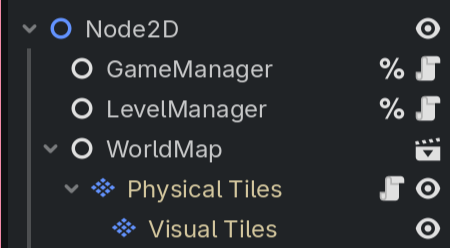
<p>I have setup the dual <code class="language-plaintext highlighter-rouge">TileMapLayer</code>s as so:</p>

<figure class=""><a href="/assets/images/WorldMap_in_tree.png" class="image-popup" title="Dual tilemap setup in Godot.
"><img src="/assets/images/WorldMap_in_tree.png" alt="WorldMap is the parent of physical layer which is the parent of visual layer" /></a><figcaption>
      Dual tilemap setup in Godot.

    </figcaption></figure>

<p><code class="language-plaintext highlighter-rouge">WorldMap</code> is simply a container Node. My auto-tiling script is attached to my Physical Tiles layer. Create a separate node for level management and in a new script we can define our level saving logic.</p>

<h2 id="saving">Saving</h2>
<p>First, we need to find our <code class="language-plaintext highlighter-rouge">WorldMap</code> container Node in the tree and keep a reference to it. We can then do the same for our physical tile layer, and using the physical layer we can do the same for our visual tile layer. We now have 3 references to our container, physical tiles, and visual tiles.</p>

<p>For each of the tilemaps, we need to serialise them and we can store those results in a dict accessed via keys “Physical” or “Visual”. Serialisation works by iterating through all populated cells and appending to an array a dict containing it’s position, source_id, atlas_coords, and alternative_id. If you are adapting this to another engine, substitute alternative_id with your needs such as rotation instructions. To finish serialisation, we can return this array in a dict with a key of the path to the tileset and a value of the array of cells dicts. We model the data this way because every cell in a tilemap layer shares the same tileset, so storing it for every cell would be wasteful.</p>

<div class="language-gdscript highlighter-rouge"><div class="highlight"><pre class="highlight"><code><span class="k">var</span> <span class="n">data</span> <span class="p">:</span><span class="o">=</span> <span class="p">{</span>
		<span class="s2">"physical"</span><span class="p">:</span> <span class="n">_serialize_tilemap</span><span class="p">(</span><span class="n">physical</span><span class="p">),</span>
		<span class="s2">"visual"</span><span class="p">:</span> <span class="n">_serialize_tilemap</span><span class="p">(</span><span class="n">visual</span><span class="p">)</span>
	<span class="p">}</span>
</code></pre></div></div>
<p>Generates data as such:</p>
<div class="language-json highlighter-rouge"><div class="highlight"><pre class="highlight"><code><span class="err">data</span><span class="w"> </span><span class="err">=</span><span class="w">
</span><span class="p">{</span><span class="w">
  </span><span class="nl">"physical"</span><span class="p">:</span><span class="w"> </span><span class="p">{</span><span class="w">
    </span><span class="nl">"tile_set"</span><span class="p">:</span><span class="w"> </span><span class="s2">"res://Tilesets/physical_tileset.tres"</span><span class="p">,</span><span class="w">
    </span><span class="nl">"cells"</span><span class="p">:</span><span class="w"> </span><span class="p">[</span><span class="w">
      </span><span class="p">{</span><span class="w"> </span><span class="err">pos</span><span class="p">,</span><span class="w"> </span><span class="err">source_id</span><span class="p">,</span><span class="w"> </span><span class="err">atlas_coords</span><span class="p">,</span><span class="w"> </span><span class="err">alt</span><span class="w"> </span><span class="p">},</span><span class="w">
      </span><span class="p">{</span><span class="w"> </span><span class="err">pos</span><span class="p">,</span><span class="w"> </span><span class="err">source_id</span><span class="p">,</span><span class="w"> </span><span class="err">atlas_coords</span><span class="p">,</span><span class="w"> </span><span class="err">alt</span><span class="w"> </span><span class="p">},</span><span class="w">
      </span><span class="err">...</span><span class="w">
  </span><span class="p">]</span><span class="w">
  </span><span class="p">},</span><span class="w">
  </span><span class="nl">"visual"</span><span class="p">:</span><span class="w"> </span><span class="p">{</span><span class="w">
    </span><span class="nl">"tile_set"</span><span class="p">:</span><span class="w"> </span><span class="s2">"res://Tilesets/visual_tileset.tres"</span><span class="p">,</span><span class="w">
    </span><span class="nl">"cells"</span><span class="p">:</span><span class="w"> </span><span class="p">[</span><span class="w">
      </span><span class="p">{</span><span class="w"> </span><span class="err">pos</span><span class="p">,</span><span class="w"> </span><span class="err">source_id</span><span class="p">,</span><span class="w"> </span><span class="err">atlas_coords</span><span class="p">,</span><span class="w"> </span><span class="err">alt</span><span class="w"> </span><span class="p">},</span><span class="w">
      </span><span class="p">{</span><span class="w"> </span><span class="err">pos</span><span class="p">,</span><span class="w"> </span><span class="err">source_id</span><span class="p">,</span><span class="w"> </span><span class="err">atlas_coords</span><span class="p">,</span><span class="w"> </span><span class="err">alt</span><span class="w"> </span><span class="p">},</span><span class="w">
      </span><span class="err">...</span><span class="w">
  </span><span class="p">]</span><span class="w">
  </span><span class="p">}</span><span class="w">
</span><span class="p">}</span><span class="w">
</span></code></pre></div></div>

<p>Then save this data. In Godot, runtime data must be saved in <code class="language-plaintext highlighter-rouge">user://</code> rather than <code class="language-plaintext highlighter-rouge">res://</code> because res is read-only during runtime to prevent editor corruption. Attempts to save to res are blocked by Godot. Therefore, we must save the data to <code class="language-plaintext highlighter-rouge">user://</code> and later import the data as real <code class="language-plaintext highlighter-rouge">res://</code> scenes to reflect the changes into the editor.</p>

<h2 id="importing-with-editorplugin">Importing with EditorPlugin</h2>
<p>For a nice developer workflow I have created an EditorInspectorPlugin which adds an import button to the <code class="language-plaintext highlighter-rouge">WorldMap</code> inspector. When clicked, it reads the <code class="language-plaintext highlighter-rouge">WorldMap</code> data from <code class="language-plaintext highlighter-rouge">user://</code>, builds a duplicate <code class="language-plaintext highlighter-rouge">WorldMap</code> node with the data, overwrites the scene in <code class="language-plaintext highlighter-rouge">res://</code>, and refreshes the editor’s file system which updates the scene. This is a nice solution because the import button lives inside the <code class="language-plaintext highlighter-rouge">WorldMap</code> inspector for contextuality and to avoid clutter.</p>

<p>An important caveat is that we cannot load an EditorInspectorPlugin directly from plugin.cfg. Godot requires and EditorPlugin at the top level. However, we can use the EditorPlugin to create the InspectorPlugin.</p>

<div class="language-gdscript highlighter-rouge"><div class="highlight"><pre class="highlight"><code><span class="err">@</span><span class="k">tool</span>
<span class="k">extends</span> <span class="n">EditorPlugin</span>

<span class="k">func</span> <span class="nf">_enter_tree</span><span class="p">():</span>
	<span class="n">add_inspector_plugin</span><span class="p">(</span>
		<span class="nb">preload</span><span class="p">(</span><span class="s2">"res://addons/```WorldMap```_importer/world_map_inspector.gd"</span><span class="p">)</span><span class="o">.</span><span class="n">new</span><span class="p">()</span>
	<span class="p">)</span>

<span class="k">func</span> <span class="nf">_exit_tree</span><span class="p">():</span>
	<span class="n">remove_inspector_plugin</span><span class="p">(</span>
		<span class="nb">preload</span><span class="p">(</span><span class="s2">"res://addons/```WorldMap```_importer/world_map_inspector.gd"</span><span class="p">)</span><span class="o">.</span><span class="n">new</span><span class="p">()</span>
	<span class="p">)</span>

</code></pre></div></div>

<p>For the InspectorPlugin, the script adds a button which connects to a function which imports the tilemap data, sets the tiles for the two tilemap layers, constructs a new <code class="language-plaintext highlighter-rouge">WorldMap</code> PackedScene using it, and saves it over the existing scene before refreshing the file system in the editor. Full code for this can be found on my <a href="https://github.com/KyleDunbarDev/5-Tile-Auto-Tiling">GitHub</a>.</p>

<h1 id="relevant-resources">Relevant resources:</h1>
<ul>
  <li><a href="https://www.youtube.com/watch?v=Uxeo9c-PX-w">jess::codes</a></li>
  <li><a href="https://www.youtube.com/watch?v=aWcCNGen0cM">Nonsenical 2D</a></li>
  <li><a href="https://www.youtube.com/watch?v=Uxeo9c-PX-w">Oskar Stålberg</a></li>
</ul>

<p>That’s all! Thank you for reading my first blog post. Follow me on the platforms in the footer so I look cool online and subscribe via RSS if you want to catch the next one.</p>]]></content><author><name>Kyle Dunbar</name></author><summary type="html"><![CDATA[Auto tiling is a powerful technique in 2D gamedev that allows you to build levels much easier by setting a tile as populated or not, and having the editor programmatically place the corresponding tile.]]></summary></entry></feed>